Follow two recorded instructions, hear the actual AI-pilot readbacks, and compare them with the radar display. Then use the verified desktop steps below to start your own practice session.
ATCBase is a browser-based ATC training simulator for supplementary radar and English communication practice.
60-second recording · Thailand training scenario · Some aircraft movement is accelerated · Controller instruction audio is synthesized. This is a product recording, not a live interactive simulator or a recording of operational ATC.
The pilot wording below was checked against the original response audio used in this recording. Numbers are written in ordinary English for readability; the audio uses pronunciation spellings such as “wun”, “fife” and “too”. These are recorded examples, not model answers for an assessment.
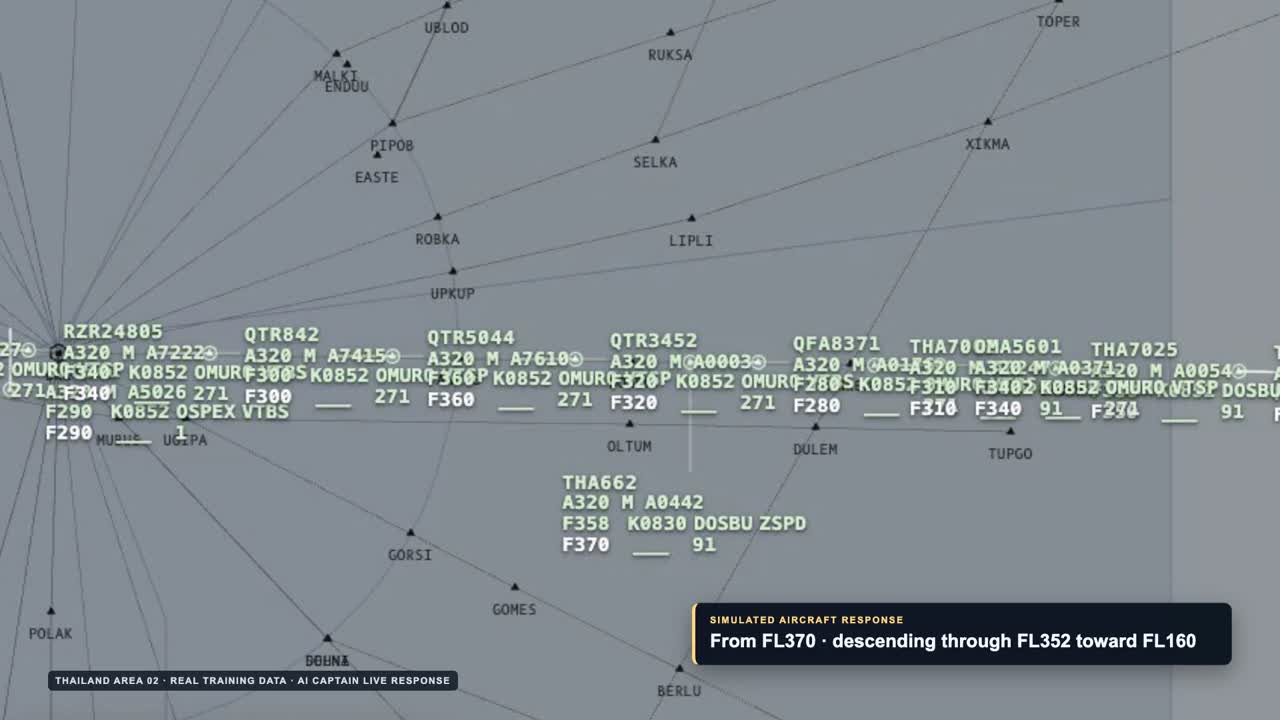
What can be checked: the readback repeats FL160 and the callsign. The aircraft’s displayed level changes from F370 to F358 during the excerpt. That is evidence of a simulated descent, not evidence that the aircraft reached FL160.
Descent excerpt at about 00:25. The aircraft label reads F358; the edited caption says FL352.
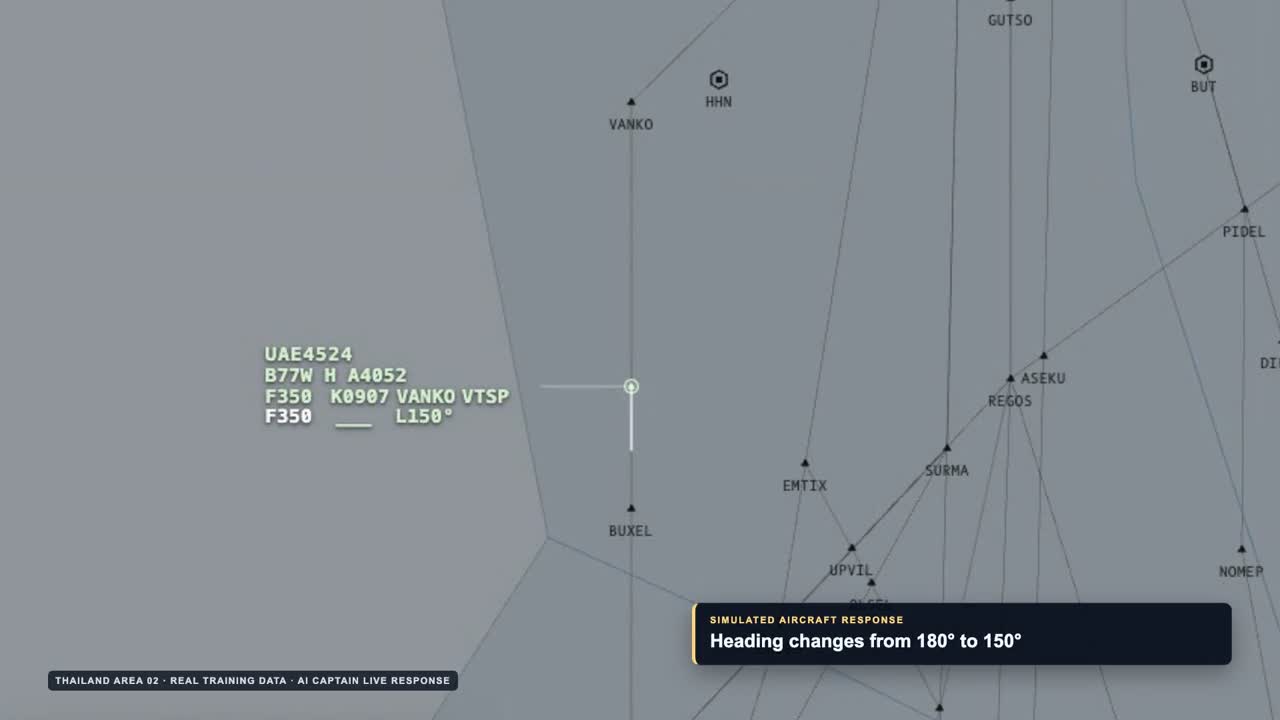
What can be checked: the readback retains the left-turn direction, heading 150 and callsign. The radar label changes from 180 to L150°. This shows the heading instruction marker; it does not by itself establish the aircraft’s actual heading or completion of the turn.
Heading excerpt at about 00:57. The L150° marker is visible.
Verified desktop walkthrough
How to start your first radar practice.
These steps follow the English desktop interface checked on 31 October 2026. The simulator may load a default scenario; the callsigns in your session may differ from the video.
Open the radar practice page
Go to atcbase.com/train. New visitors can start as guests with three trial sessions; the page shows the remaining count and a Sign in link. When the guest allowance is used up, the site asks you to register or sign in.
Use Training Setup
In Training Setup, review Active Frequency. For a first normal radar session, leave the optional ICAO English Training box unchecked. Select Start Training. The optional box adds an abnormal-situation English exercise; it is not required for basic radar instruction practice.
Complete the microphone check
If the browser asks, allow microphone access. In Check your microphone, select the input and say a short sentence. Check that the level bar moves and the page reports Input signal detected, then select Use this microphone. The optional Record a 2-second test lets you listen back locally. A successful check is remembered for that microphone.
Review the scenario before speaking
After setup, a default scenario can load automatically. Use Change Scenario to open Select Scenario and choose another available scenario. Use the toolbar’s play/pause control to pause while inspecting the traffic and resume when ready to observe movement.
Hold to transmit; release to send
In the AI CAPTAIN radio panel, hold HOLD TO TRANSMIT or hold the space bar while speaking. Begin with the full callsign of an aircraft in your active scenario, then give one simple instruction. Release the button or space bar to send it, and wait for the crew’s response before the next transmission.
Check both the reply and the radar
Listen for the callsign, instruction direction and numerical value in the readback. Then observe the relevant display field and aircraft movement over time. A spoken readback or changed instruction marker alone does not prove the aircraft has reached the requested level or heading.
The microphone-check test stays on your device. Actual training voice recordings and transcripts are saved privately for 30 days, as disclosed in Training Setup; the local microphone test and a training transmission are different.
A first observation task
Practise one instruction at a time.
In the scenario you have opened, choose an aircraft and note its callsign and current displayed level or heading. Give one suitable instruction for that practice scenario. Use that aircraft’s callsign, not a callsign copied from this video.
Listen: did the reply repeat the intended callsign and instruction values?
Observe: did the relevant label change, and does the aircraft’s movement over time agree with the instruction?
Separate the stages: distinguish receiving a readback, seeing an instruction marker, and observing the aircraft reach the requested state.
This is a manual observation exercise. It is not a scored assessment or a guide to choosing operational clearances.
If you get stuck
Before trying another call.
No microphone signal?
Check the selected input, hardware mute and browser microphone permission. In the microphone check, choose another input if needed. Continue only after an input signal is detected.
The aircraft in the video is missing?
The recording and your active scenario may contain different aircraft. Use Change Scenario to inspect the available scenarios, and use the callsign of an aircraft actually present.
A reply is missing or differs from your instruction?
Wait for the radio to return to standby. Check the callsign and microphone input before trying one clear instruction again. If the mismatch persists, stop treating that exchange as a successful exercise and report the issue to [email protected].
About this demonstration
A few things to know.
Can I control the aircraft in this video?
The video is a recording. To issue instructions yourself, open the interactive radar simulator and follow the desktop walkthrough above.
Is the aircraft movement shown at normal speed?
Some movement is accelerated to make the aircraft response visible within one minute. Do not use this recording to judge real aircraft performance or response timing.
Does this show my institution’s airspace or procedures?
No. The recording uses a Thailand training scenario. It does not represent your institution’s airspace, equipment or procedures.
What is the role of this simulator in training?
ATCBase supports supplementary radar instruction and English communication practice. It does not replace approved training, formal assessments or on-the-job training, and does not provide official certification. Simulated aircraft and AI responses may differ from real operations.
Take your turn on the radar.
Complete Training Setup, check your microphone and try one instruction.